How to screen record on Windows 10 and 11, with audio
On Windows 11, press Windows + Shift + R, drag to select what to record, turn on the microphone and system audio toggles, and click Start. That's the Snipping Tool's built-in recorder.
On Windows 10, press Windows + G to open the Xbox Game Bar and click Record, or press Windows + Alt + R. It records the app you're in, with its sound, but it can't record your whole desktop. For the full screen, a webcam overlay, or editing afterwards, use a recording app (Method 3).
Method 1: Snipping Tool (Windows 11)
- Press Windows + Shift + R. (Or open Snipping Tool, choose Record, then New.)
- Drag to select the part of the screen you want, or the whole screen.
- Turn on the microphone toggle to record your voice and the system audio toggle to record sound from your PC. These arrived in Snipping Tool version 11.2307; if you don't see them, update Snipping Tool from the Microsoft Store.
- Click Start to begin recording.
- Click Stop in the toolbar, then save the video from the Snipping Tool window.
Based on Microsoft's Snipping Tool guide and the Windows Insider announcement of audio recording.
Method 2: Xbox Game Bar (Windows 10 and 11)
- Open the app or game you want to record and click into it.
- Press Windows + G to open the Game Bar.
- In the Capture widget, turn on the microphone if you want your voice, then click Record (or press Windows + Alt + R without opening the overlay).
- Press Windows + Alt + R again to stop. Recordings go to your Videos > Captures folder.
The limit: Game Bar records a single app window. It won't capture the desktop, File Explorer, and won't follow you into other apps, so it's great for gameplay and awkward for tutorials that move between windows.
Method 3: a recording app (full desktop, webcam, and editing)
If you need the whole screen on Windows 10, your camera in the corner, or to edit the recording afterwards, use a recording app. We build PandaStudio, so here's how it works there. It runs on Windows 10 and 11 (and Mac), and is free to try.
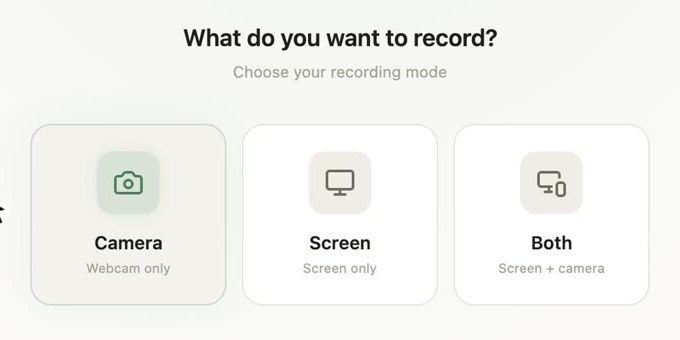
- Open PandaStudio and choose what to record: Camera, Screen, or Both.
- On the recording bar, pick the screen or a window, then turn on system audio (the speaker icon) and the microphone. The camera button adds your face as a bubble you can move later.

- Click record. When you stop, the recording opens as a project, already transcribed, so you can cut mistakes by deleting words, remove "um"s and silences in one click, add captions and zooms, and export an MP4 or publish to YouTube.
Prefer free and don't need editing? OBS Studio records the full desktop at no cost, with a steeper setup. See our OBS alternatives roundup for more options.
Troubleshooting
- No audio toggles in Snipping Tool: update it from the Microsoft Store; audio recording needs version 11.2307 or later.
- Voice missing: check Settings > Privacy & security > Microphone, and that the right input device is selected.
- Game Bar greyed out on the desktop: expected; it only records apps. Use Snipping Tool (Windows 11) or a recording app.
Questions
What is the shortcut to screen record on Windows 11?
Press Windows + Shift + R to start a Snipping Tool screen recording, then drag to select the area. For games and single apps you can also use Windows + Alt + R, which records with the Xbox Game Bar.
How do I screen record on Windows with sound?
On Windows 11, Snipping Tool shows microphone and system audio toggles when you start a recording (in Snipping Tool 11.2307 and later). On Windows 10, the Xbox Game Bar records the sound of the app you're capturing, and you can turn your microphone on in its Capture widget.
Can I record my whole desktop on Windows 10?
Not with the Xbox Game Bar: it records one app window at a time and won't record the desktop or File Explorer. Use a recording app such as PandaStudio or OBS Studio to capture the full screen on Windows 10.
Why does my Windows screen recording have no sound?
Usually the audio toggles were off when the recording started, Snipping Tool is out of date (audio arrived in version 11.2307), or the app doesn't have microphone permission. Check Settings > Privacy & security > Microphone and update Snipping Tool from the Microsoft Store.
Can I record my screen and webcam together on Windows?
The built-in tools don't add a webcam overlay. PandaStudio records screen, camera, microphone and system audio together, and lets you move and resize the camera bubble afterwards.