How to record a remote podcast locally, with every guest at full quality
Most remote podcast tools work the same way: every guest records into their browser, the files upload to the company's cloud after the call, and you pay per seat, per month, forever. It works, but your raw footage lives on someone else's servers and the bill never stops. There's another way: record the whole thing locally and move the guest's track to you peer-to-peer, so nothing touches a third-party cloud and there's no subscription.
This guide covers a setup checklist that works with any recorder, how local, peer-to-peer recording works for a show with up to three remote guests, when it's the right choice (and when a tool like Riverside still wins), and the exact steps in PandaStudio.
How local + peer-to-peer recording works
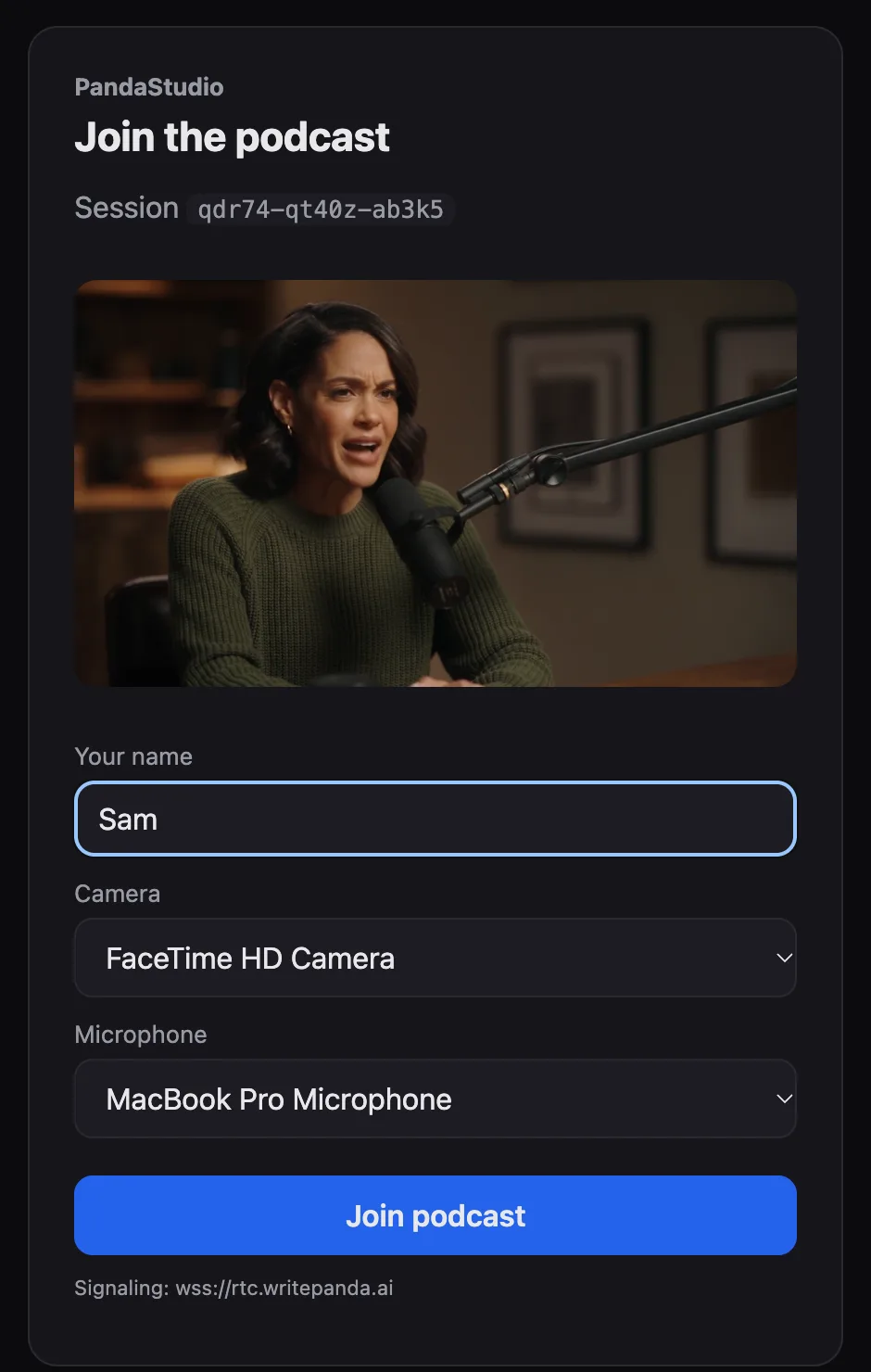
Guests join by link. You start a session on the desktop app and send up to three guests a link. They open it in any browser, pick their camera and mic, and they're in. No account, no install.
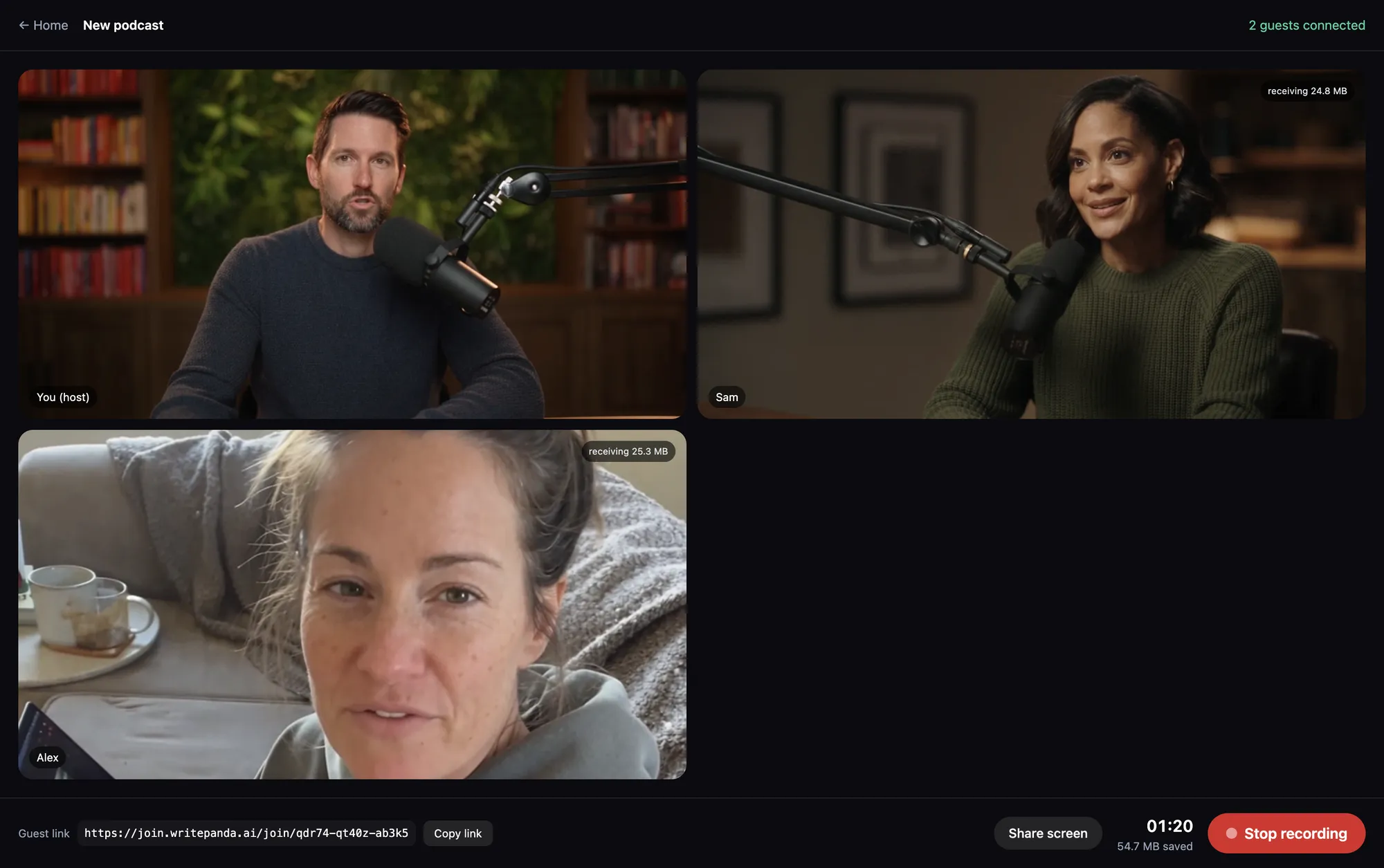
Everyone records locally. Your camera and mic record on your machine; each guest's camera (up to 1080p) and mic record on theirs. Only the microphone is recorded, never system audio, so each track holds one voice. Network hiccups during the call don't degrade the recorded files, because the recording isn't the stream.
The guest's track transfers peer-to-peer. As you record, the guest's file is sent directly to you over the internet, machine to machine. Nothing is stored on a third-party cloud, which is also why there's no per-recording storage fee.
Everyone lands on your timeline. When you wrap, every recording arrives as one podcast clip, transcribed per speaker, ready to edit, caption, clip and publish in the same app.
Before you record: a five-minute checklist
These apply whichever recorder you use. Most remote-recording problems are echo, a wrong microphone or a connection that drops, and all three are easier to prevent than to fix in the edit.
- Everyone wears headphones. Without them, your voice comes out of the guest's speakers and into their microphone, and you hear yourself on their track.
- Pick the right microphone. Ask guests to select their external mic in the browser, not the laptop or webcam mic, and to say a sentence while you listen.
- Use a recorder that records locally. If the tool records the call itself, every dropout is in your episode. Local recording keeps the file clean.
- Steady connection, quiet room. A cable or a seat near the router helps the live call. Soft furnishings (curtains, a sofa, a bookshelf) cut room echo.
- Record a 30-second test. Play it back before the real conversation. It catches a muted mic or the wrong camera while there is still time to fix it.
- Keep the guest's tab open. Until the guest's file has reached you, closing the browser can interrupt the transfer.
Why record locally instead of in the cloud
- Quality. Local capture isn't bottlenecked by either person's connection. A dropped Wi-Fi moment shows up as a glitch in the live preview, not in the recorded file.
- Privacy. Your raw footage stays on your machine and your guest's. It isn't parked on a vendor's servers waiting to be downloaded.
- Cost. No per-seat subscription and no per-recording storage bill, which is exactly what lets this ship on a one-time license.
- One tool. Recording and editing live in the same app, so there's no export-and-reimport step between the conversation and the finished episode.
Step by step in PandaStudio
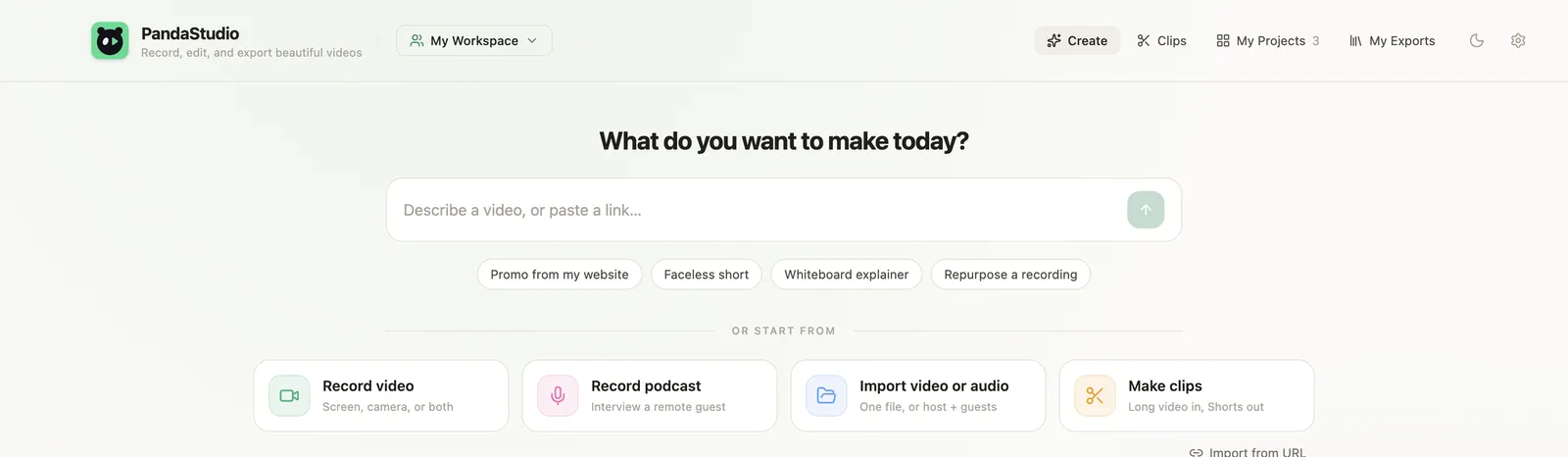
- 1. Open PandaStudio and choose Record podcast on the home screen. Copy the guest link it generates (you can create it now and record later).
- 2. Send the link to up to three guests. They open it, allow camera and mic, and you'll see their live previews.
- 3. Hit Start recording. Everyone captures locally; the guest tracks stream to you peer-to-peer in the background. You or a guest can share a screen.
- 4. Stop when you're done. The recordings open as one podcast project, transcribed per speaker. If a guest's transfer failed, their file is still on their computer with Retry and Download.
- 5. Edit: remove filler words and pauses from the transcript, run Enhance voice, switch the layout per section or press Follow the speaker, add captions, then export MP3 or video, make clips, or publish to YouTube.
More detail on layouts, Enhance voice, audio-only export and clips is on the PandaStudio podcast recording page.
When a cloud tool like Riverside is still the better choice
Local + peer-to-peer is ideal for an interview with up to three remote guests where you want to own your files and skip the subscription. If you run a panel of more than four people, need 4K per participant, stream live, record from a phone, or rely on a mature cloud workflow with team collaboration, a dedicated studio like Riverside is more capable, and worth it. See the honest PandaStudio vs Riverside comparison for the full breakdown.
Record your next episode locally
PandaStudio records a remote podcast with up to three guests at full quality, peer-to-peer, and edits it in the same app. Pay once or monthly, Mac or Windows, and your footage stays on your computer.
Frequently asked
Can I record a remote podcast without uploading to the cloud?
Yes. Up to three guests join from a browser link, everyone records locally at full quality, and the guest tracks transfer to you peer-to-peer, so the footage never sits on a third-party server. Everyone lands on your timeline, transcribed and ready to edit.
Does my guest need to install anything?
No. The guest opens a link in their browser, picks a camera and mic, and records, no account, no download. You record on the desktop app; they record in the browser.
Is PandaStudio a free Riverside alternative?
It is free to try with 10 exports, then $19 a month or a one-time license from $99, with every track saved on your computer and a full editor included. Riverside is still the better fit for panels of more than four people, 4K from every guest, live streaming and mobile recording.