Browse all docs
Add B-roll to a talking-head video
In PandaStudio you add B-roll by picking the words in the transcript where a picture should cut in, then adding your own image or one generated on your connected image service, placed over the speaker for about two seconds with a push-in, a shutter sound and a transition.
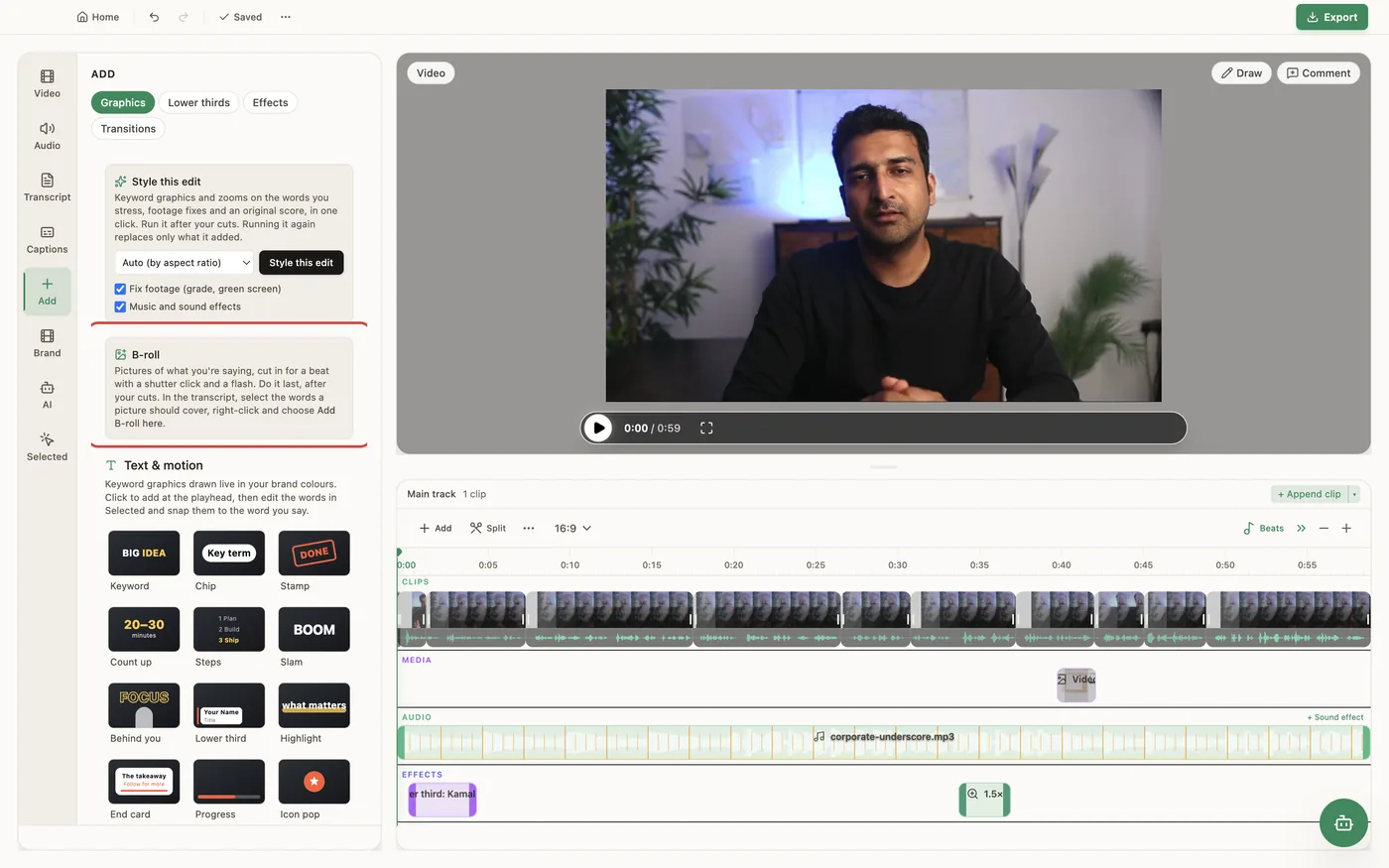
B-roll beats are pictures of what you are saying, cut in over the talking head on a word. In the Transcript tab, select the words a picture should cover, right-click and choose Add B-roll here. The B-roll card in Add, Graphics lists your moments and checks each one: that the word wasn't cut, that it doesn't hide another graphic, that beats aren't too close together, and that it isn't over the opening hook. If a spot doesn't work it suggests a nearby one (Use ... instead). For each moment, click Add my picture to choose a PNG, JPG or WebP, or describe the picture and click Generate to make one with Replicate or Higgsfield, if you have connected one in Settings, Connectors (it uses your credits on that service). Choose a layout, Full frame or Picture card (a rounded card that keeps the speaker visible, placed away from the face), a transition (Flash, Light streak, Film burn, White fade, Glitch or Straight cut) and whether to play the Shutter sound. A beat lasts about 2 seconds (1.4 to 4 seconds through the AI) with a slow push on the picture, and its picture, sound and transitions move, follow cuts and delete together. Add B-roll last, after your cuts. The video needs a transcript, so it works in any language the transcript does. When the AI adds B-roll it picks the moments from what you say, shows them to you and asks whether you'll give your own images, want them generated on your image connector, or want none. It never generates images without your answer.
In the app
- 1Make your cuts first, and transcribe the video if it isn't already.
- 2In the Transcript tab, select the words a picture should cover, right-click and choose Add B-roll here.
- 3Open the Add tab, choose Graphics and find the B-roll card. Fix any moment it flags, or click its Use ... instead suggestion.
- 4Pick Full frame or Picture card, a transition and whether to play the Shutter sound.
- 5Click Add my picture to use your own image, or type what it should show and click Generate (needs Replicate or Higgsfield connected).
- 6Play it back. Move or delete a beat on the timeline and its parts move with it.
Ask the AI
Open the AI chat in the editor and say any of these. The agent does the edits for you.
CLI & MCP
Every capability is a verb, reachable from the terminal or from an MCP agent (Claude Code, Cursor, Cline, Continue, Claude Desktop).
pandastudio project.check-broll --id=$ID --moments='[{"wordId":"w-120","picture":"a busy coffee shop"}]'Checks the moments you picked and suggests a nearby spot for each blocked one. Without moments it lists free stretches. It never makes images, and it reports whether an image connector is connected.
pandastudio project.add-broll --id=$ID --imagePath=/Users/me/Pictures/coffee.jpg --wordId=w-120 --layout=inset
layout full (default) or inset; transition flash (default), light-sweep, film-burn, fade-white, glitch or none; sound shutter, click or none; push in, out or none; durationMs 1400-4000 (default 2000).
pandastudio project.list-broll --id=$ID
Each beat's brollId, picture and timing.
pandastudio project.remove-broll --id=$ID --brollId=$BROLL
Removes the picture and its transitions together.