Browse all docs
Post videos to TikTok, Instagram and LinkedIn from your desktop
PandaStudio posts a finished export to Instagram, TikTok, Facebook, LinkedIn and X from the desktop app, to one or several connected accounts at once, now or at a scheduled time, on the Creator and Team plans and the Pro subscription.
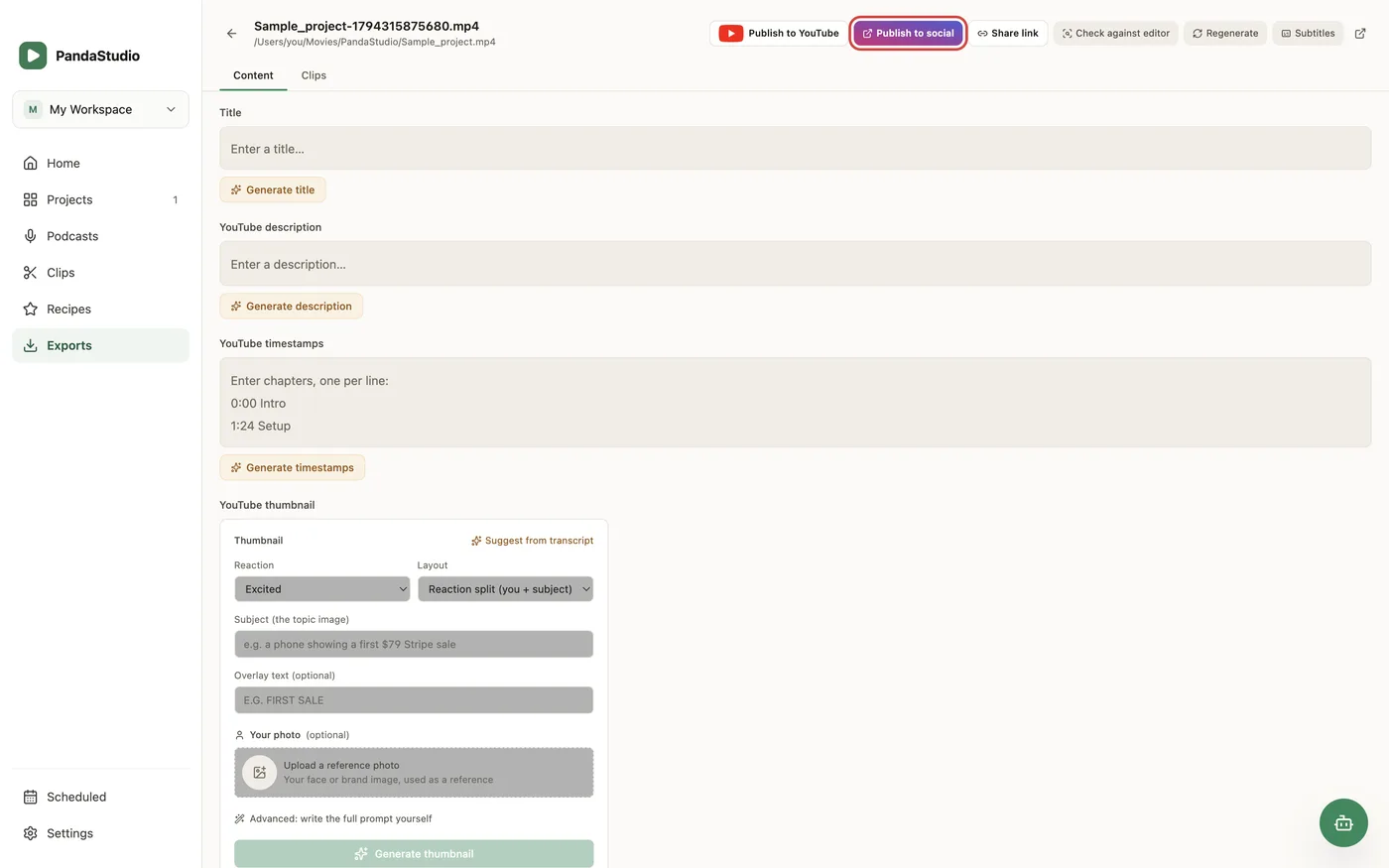
Connect your accounts once in Settings, Social accounts: Connect opens the network's own sign-in in your browser, you approve PandaStudio and come back to the app. Instagram needs a Business or Creator account (an Instagram rule), and Facebook posts to a Page you manage. Accounts belong to the workspace they were connected in, so a client's accounts stay in that client's workspace and never show in your others. To post, open a finished export and click Publish to social (or Post to Instagram, TikTok and more on a clip you exported from Make clips). Tick the accounts under Post to, write the Caption (hashtags go in it too) or click Write it for me, and under When choose Post now or Schedule with a date and time at least a minute ahead. The video uploads straight to the publishing service, never through a PandaStudio server, and keep PandaStudio open until it finishes: Instagram and TikTok can take a minute or two to process. When it is done, each account shows its status (published, scheduled or failed) with a View link to the live post, and the export remembers where it was posted. Short vertical 9:16 videos suit Instagram Reels and TikTok. Social publishing comes with the Creator and Team plans and the Pro subscription while it is active. It is not part of the Starter or Solo plans or the free trial. YouTube has its own publishing flow.
In the app
- 1Open Settings, choose Social accounts and click Connect next to Instagram, TikTok, Facebook, LinkedIn or X. Finish the sign-in in your browser.
- 2Export your video, then open it under Exports in the sidebar and click Publish to social.
- 3Under Post to, tick the accounts to post to (or click Connect for a network you haven't added yet).
- 4Write the Caption, or click Write it for me.
- 5Under When, choose Post now, or Schedule and pick a date and time.
- 6Click Post to accounts and keep PandaStudio open until each account shows published or scheduled. Click View to open a post.
Ask the AI
Open the AI chat in the editor and say any of these. The agent does the edits for you.
CLI & MCP
Every capability is a verb, reachable from the terminal or from an MCP agent (Claude Code, Cursor, Cline, Continue, Claude Desktop).
pandastudio social.connect --network=tiktok
Opens the network's sign-in in your browser and returns a sessionId at once. Check it with social.connect-status until it says connected.
pandastudio social.channels
The accounts connected in the active workspace, with the ids to post to and each network's limits and settings.
pandastudio export.publish-social --id=$ENTRY --networks=tiktok,instagram --caption='Three edits that save me an hour #videoediting'
Runs as a job (job.wait). Pick accounts with channelIds or whole networks. The caption defaults to the export's title. Add --when=schedule --scheduledAt=2026-12-01T09:00:00+01:00 to schedule. It posts publicly, so the AI confirms the caption and accounts with you first.
pandastudio social.post-status --postId=$POST --exportId=$ENTRY
scheduled, publishing, published, partial or failed, with a link per account.