Browse all docs
Auto reframe a video to follow the speaker
PandaStudio keeps the speaker's face in frame when you turn a landscape video into a vertical one, follows whoever is talking shot by shot, and on a podcast with one camera per person cuts to whoever is speaking.
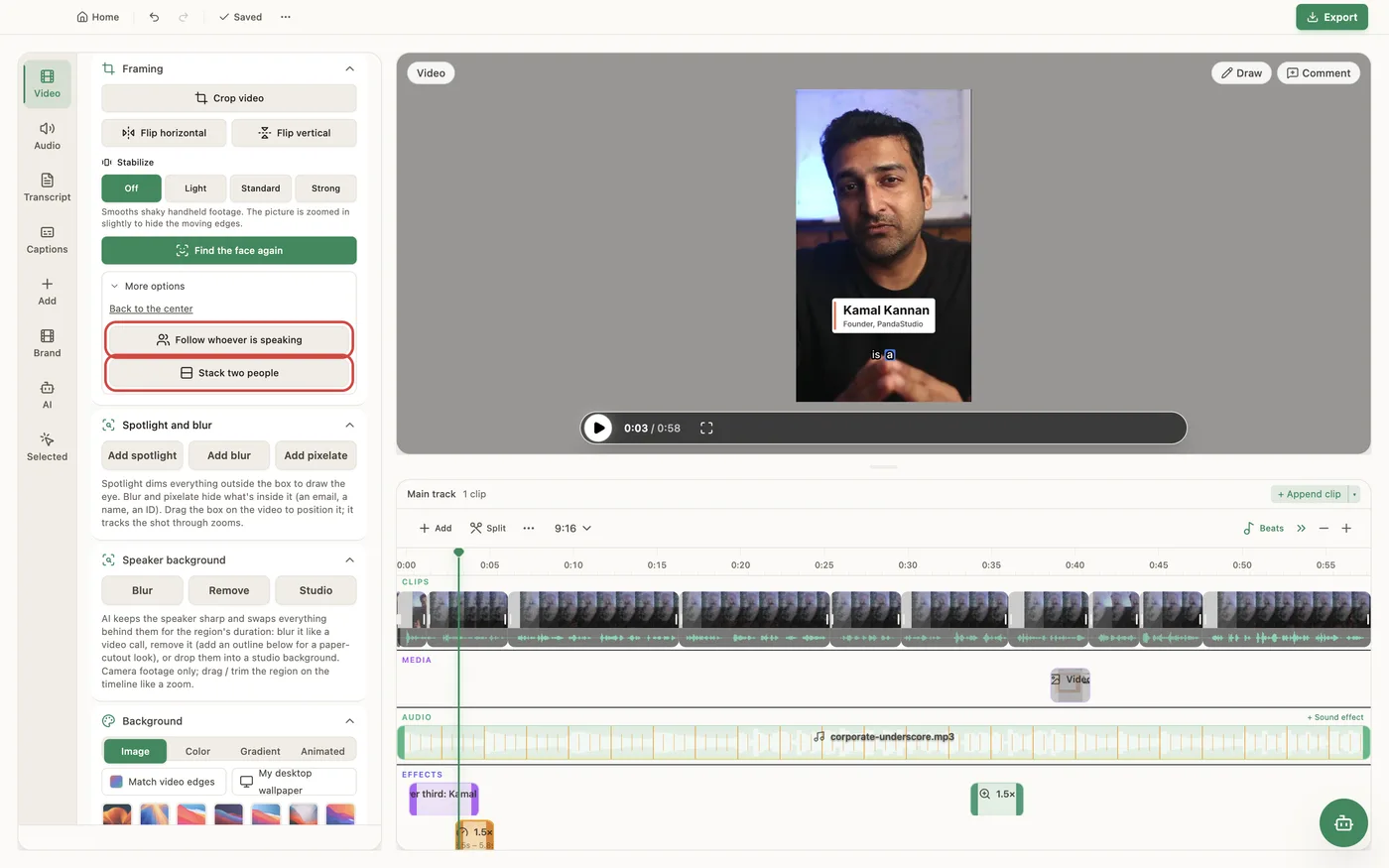
There are four tools, all in the Video tab. Keep face in frame, under Framing, finds the face and keeps it in the crop when a landscape clip is shown in a 9:16 or other cover-cropped layout (PandaStudio also finds it on its own for vertical talking-head clips). Follow whoever is speaking, under Framing in More options, finds the shot cuts and, in each shot, frames the person whose mouth moves with the speech, head and shoulders, and keeps two people in frame while it is unclear who talks. It needs no speaker labels in the transcript. On a vertical project, Stack two people shows two people in one wide shot one above the other, each framed on their own face. Since PandaStudio 2.1.49 it also works on footage that already has the video's shape, like a 16:9 wide of two hosts in a 16:9 video: it punches in on the person talking and shows the whole frame when it is unclear. Black bars baked into the footage are detected and kept out of the crop. Stop following removes it. On a podcast recording where each person has their own camera, Follow the speaker under Layout cuts to whoever is talking, shows both people during quick back-and-forth and skips short interjections; run it after your cuts. For a camera card over a screen recording, Follow my face under Layout keeps your face in the middle of the card as you move. Face detection runs on your computer, and the preview and the export follow the same track.
In the app
- 1Set the aspect ratio to 9:16 on the timeline (or keep 16:9 for punch-ins on a wide shot).
- 2Open the Video tab. Under Framing, click Keep face in frame to keep one person centered.
- 3For several people or several shots, open More options under Framing and click Follow whoever is speaking. On a vertical project, Stack two people stacks two people from a wide shot.
- 4On a podcast with one camera per person, open Layout and click Follow the speaker after you have made your cuts.
- 5For a camera card over a screen recording, turn on Follow my face under Layout.
Ask the AI
Open the AI chat in the editor and say any of these. The agent does the edits for you.
CLI & MCP
Every capability is a verb, reachable from the terminal or from an MCP agent (Claude Code, Cursor, Cline, Continue, Claude Desktop).
pandastudio project.auto-reframe --id=$ID
Follows whoever is speaking in each shot. split=true stacks two people on vertical canvases; zoom=1.3 forces a fixed punch-in; clear=true removes it.
pandastudio project.follow-speaker --id=$ID
Podcasts with one camera per person only, from the transcript's speaker labels. Re-run it after later trims; it replaces its own earlier sections.
pandastudio project.center-camera-on-face --id=$ID
Keeps the face centered in a separate camera card or podcast tile. Runs as a job.
pandastudio project.set-focal-point --id=$ID --clipId=clip-1 --x=0.5 --y=0.35
Sets the point a cover crop keeps in frame, 0 to 1 from the top left. clear=true goes back to the center.
pandastudio project.track-focus-face --id=$ID --regionId=spotlight-1
Makes a spotlight or blur follow a face, not the frame.