Browse all docs
Edit an audio-only podcast by transcript
PandaStudio opens MP3, WAV, M4A and other audio files as an audio-only project you edit by transcript, then exports MP3, WAV or M4A at podcast loudness with the episode tags and cover art embedded, or an audiogram video.
Upload or drop an audio file (MP3, WAV, M4A, AAC, FLAC or OGG) on Home and PandaStudio makes an audio-only project. Pick up to 4 files at once and they import as the speakers of one podcast, a host and up to 3 guests, synced by their audio, so after transcribing you edit by speaker. Editing works as for video: delete words in the Transcript tab, remove fillers and pauses, add music, and use Enhance voice in the Audio tab. In an audio-only project the Video tab is replaced by Canvas: add Cover art (a square image; 3000 x 3000 is the podcast standard), choose Waveform (cover art with a live waveform) or Cover only, set an Accent color, and fill in Episode: Show name, Episode title and Episode number. The canvas uses these for its titles and audio exports write them as tags (title, artist, album and track). Export episode offers three kinds of export. Audio file exports MP3 (constant bitrate 128, 192 or 320 kbps, 192 by default), WAV (24-bit) or M4A (AAC), with Channels (As recorded, Stereo or Mono), Sample rate and Loudness: Podcast (-16 LUFS, the default for audio-only projects), Spoken word (-19 LUFS, best with mono), Streaming (-14 LUFS) or Off, with peaks kept under -1 dBTP. MP3 and M4A embed the cover art. Audio exports cut on the audio samples, not on video frames, so every pause lands exactly where you put it. Audiogram makes a video with the cover art, a live waveform and captions (Square, Vertical or Wide, the whole episode or a clip from the playhead), and Cover video makes a plain cover-art video for YouTube. Recipes that need camera footage are not offered for audio-only projects.
In the app
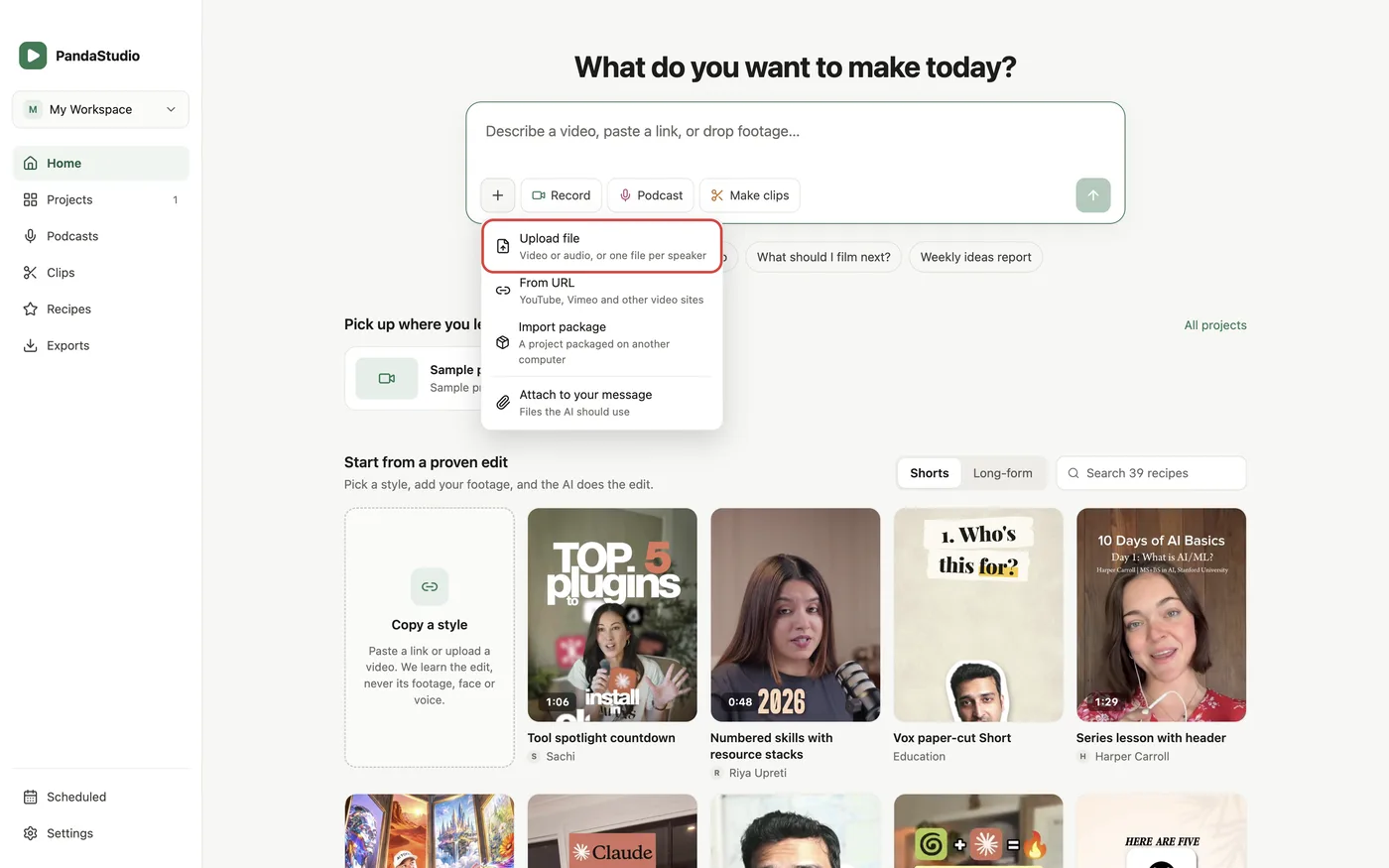
- 1On Home, click + then Upload file and pick an audio file, or drop it on the box. Pick up to 4 files for a host and guests.
- 2Open the Transcript tab, click Transcribe, then delete words, remove filler words and remove pauses.
- 3Open Canvas: choose a cover image under Cover art, pick Waveform or Cover only, and fill in Show name, Episode title and Episode number.
- 4Optional: in the Audio tab, run Enhance voice and add music.
- 5Click Export. In Export episode choose Audio file, pick MP3, WAV or M4A, the bitrate, channels and Loudness (Podcast, -16 LUFS), and export. Or choose Audiogram or Cover video for a video version.
Ask the AI
Open the AI chat in the editor and say any of these. The agent does the edits for you.
CLI & MCP
Every capability is a verb, reachable from the terminal or from an MCP agent (Claude Code, Cursor, Cline, Continue, Claude Desktop).
pandastudio project.set-cover-art --id=$ID --image=/path/to/cover.png
PNG, JPEG or WebP, square. Shown on the canvas and embedded in MP3 and M4A exports. --image=none removes it.
pandastudio project.set-episode-info --id=$ID --show="The Panda Pod" --title="Pricing your first product" --episode=12
Used for the canvas titles and the tags of audio exports. An empty string clears a field.
pandastudio export.start --id=$ID --format=mp3 --bitrate=192 --channels=mono --normalizeLoudness=podcast
format mp3 | wav | m4a exports audio only, with the same mix as a video export. normalizeLoudness podcast (-16), spoken (-19), streaming (-14) or off. For a video: --audiogram=true or --audiogram=cover with --aspectRatio=1:1 | 9:16 | 16:9 and optional rangeStartMs / rangeEndMs. Runs as a job.