Browse all docs
Blur a face or part of a video
PandaStudio blurs or pixelates a box or oval on the video to hide a face, an email or a password, or spotlights one spot by dimming everything around it, for any time range, and can make it follow a face or a moving area.
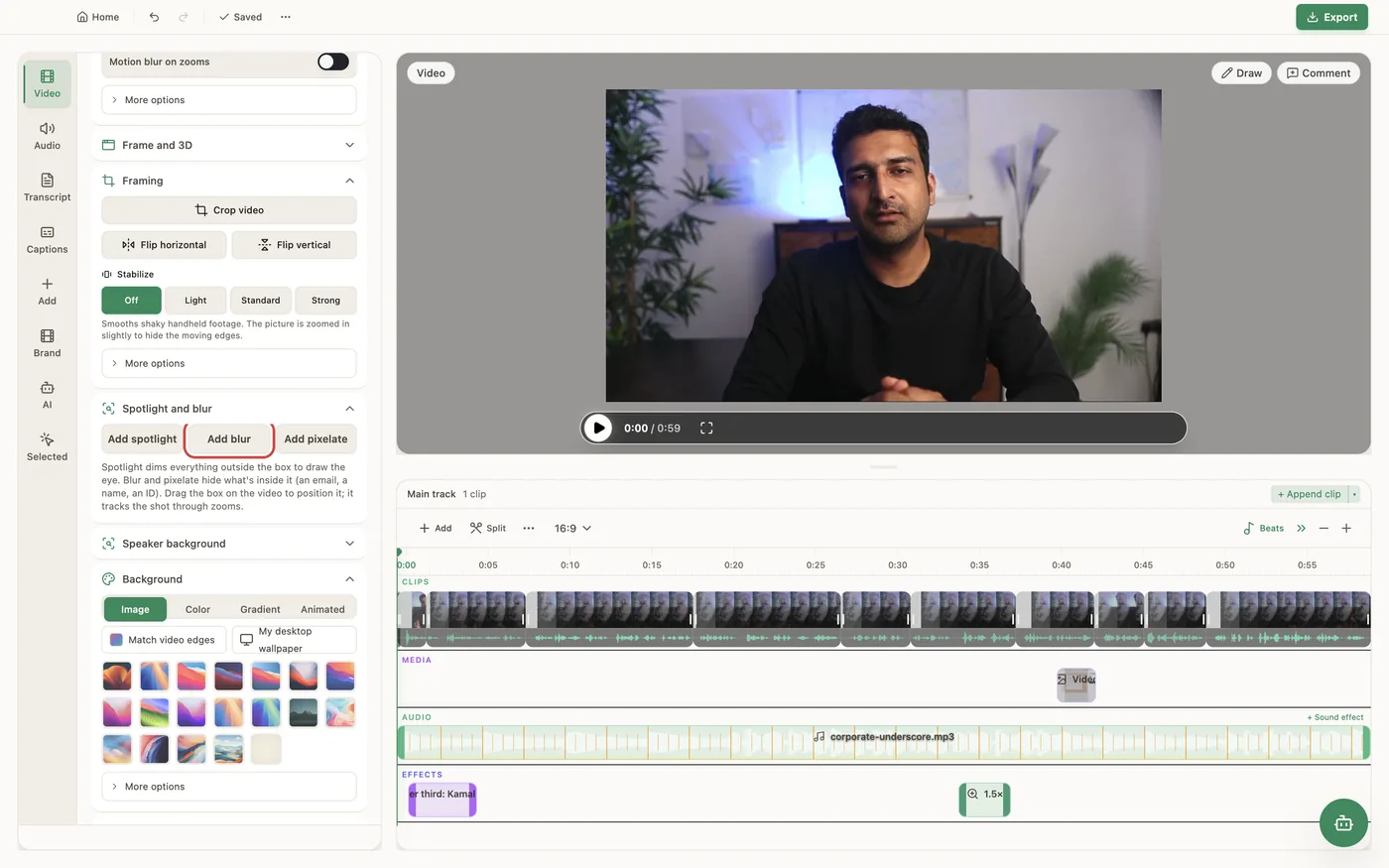
In the Video tab, the Spotlight and blur section has three buttons: Add spotlight dims everything outside a box to draw the eye, Add blur blurs what is inside it and Add pixelate turns it into a mosaic, the usual look for emails, IDs and account numbers. The region starts at the playhead and lasts 3 seconds; drag its edges on the timeline to change that, and drag the box on the video to place it. Shape switches between Rectangle and Oval (for faces), Style switches a blur between Blur and Pixelate, and Apply to switches between The shape and The person, which blurs the presenter or spotlights only them. The sliders set Roundness, Feathering, Blur strength, Block size or Dim amount, and each can be keyframed at the playhead to animate the box. The box stays on the same content through zooms. Follow a face moves the region with a face over its whole span (for a bystander's face), and Track this area follows whatever is inside the box, such as a moving window or a scrolling email address. Face detection and tracking run on your computer, and the preview and the export match.
In the app
- 1Move the playhead to where the blur or spotlight should start and open the Video tab.
- 2In Spotlight and blur, click Add spotlight, Add blur or Add pixelate.
- 3Drag the box on the video over the face or text, and pick Rectangle or Oval under Shape.
- 4Drag the region's edges on the timeline to set when it starts and ends, and set Blur strength, Block size or Dim amount.
- 5If the subject moves, click Follow a face or Track this area.
Ask the AI
Open the AI chat in the editor and say any of these. The agent does the edits for you.
CLI & MCP
Every capability is a verb, reachable from the terminal or from an MCP agent (Claude Code, Cursor, Cline, Continue, Claude Desktop).
pandastudio project.add-spotlight --id=$ID --kind=blur --style=pixelate --atMs=20000 --durationMs=11000 --x=0.55 --y=0.1 --width=0.35 --height=0.08
kind spotlight (dims outside, default) or blur (hides inside); style blur or pixelate; shape rectangle or ellipse. x, y, width and height are 0 to 1 of the video.
pandastudio project.update-spotlight --id=$ID --regionId=spotlight-1 --source=person
Changes only what you pass. source=person applies it to the presenter; keyframes=[] clears tracking.
pandastudio project.remove-spotlight --id=$ID --regionId=spotlight-1
pandastudio project.track-focus-face --id=$ID --regionId=spotlight-1
Writes keyframes so the region follows the most prominent face. For any other moving thing use project.track-region.