Browse all docs
Use a green screen (chroma key) on any video
PandaStudio removes a green (or blue, or any flat color) backdrop from your main video, your camera or any image or video overlay, finds the key color for you, and shows the same result in the preview and the export.
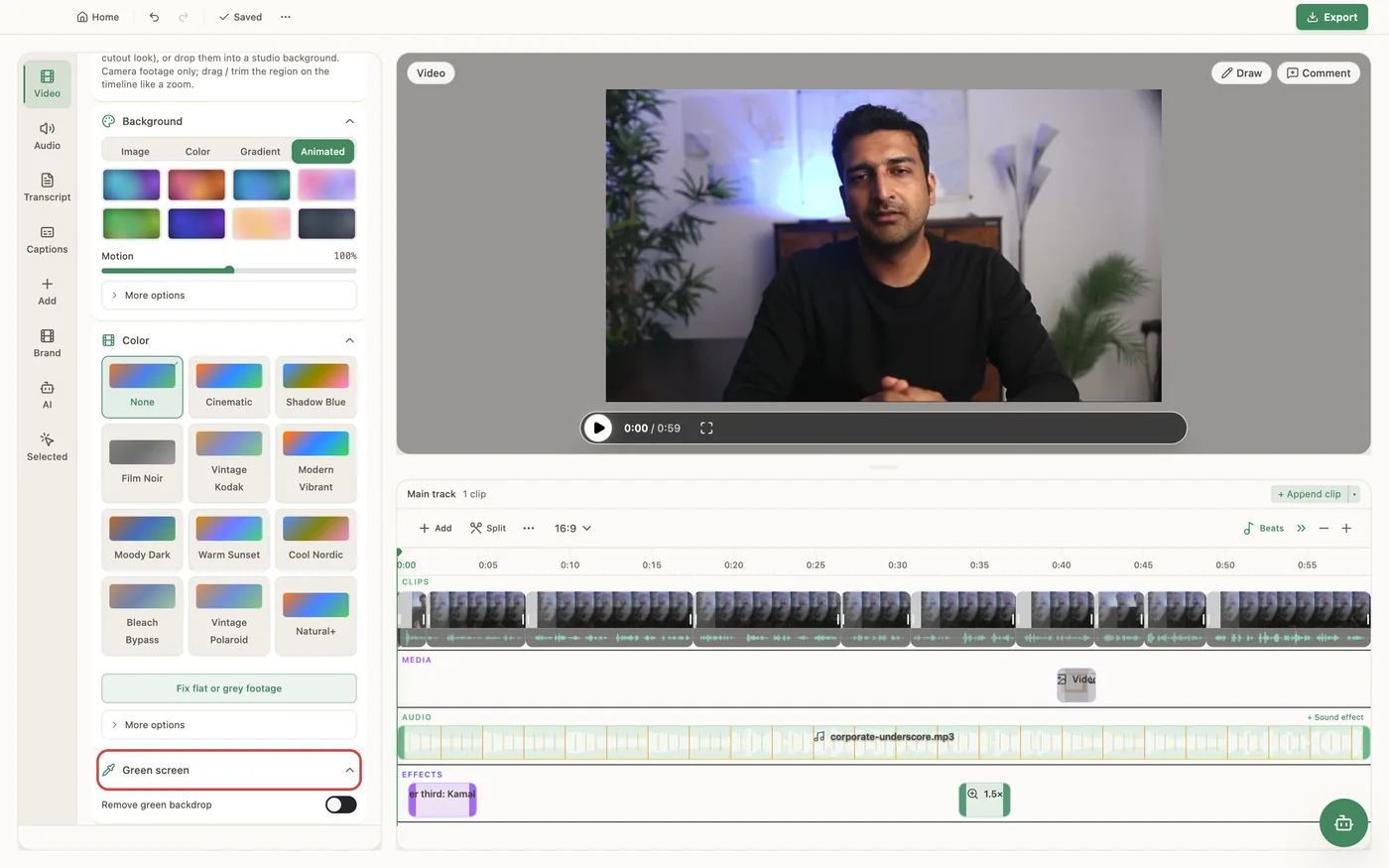
For a clip on the main track, open the Video tab and the Green screen section. If the clip has a camera, choose Screen or Camera first (Host or Guest on a podcast clip): Screen keys the main video so the project background shows through, Camera keys the camera so you stand on top of your screen recording. Turn on Remove green backdrop and PandaStudio reads the backdrop color from the edges of the frame, so a real, duller-than-pure-green screen keys without tuning. Similarity sets how much of the backdrop is removed (raise it if patches remain, lower it if parts of the person disappear). Under More options are the Key color with a Detect button, Smoothness for a softer cut-out edge and Remove green edges to take the green tint off hair and outlines. The defaults are Similarity 45%, Smoothness 25% and Remove green edges 50%. A keyed camera drops its card frame so only you appear; tick Keep the card frame (border and shadow) to keep it. Fade the key adds a keyframed fade of the key strength at the playhead, for example to reveal the background. For an image or video overlay (a presenter filmed on green, stock footage on green), click it on the timeline and use the same controls in the Selected tab. The key runs before the clip's color grade and works with masks, layouts, reframe and zooms. Keying runs on your computer, and the preview and the export use the same keyer. It removes one flat color: a busy real background needs Speaker background instead.
In the app
- 1Select the clip on the timeline and open the Video tab, then the Green screen section.
- 2If the clip has a camera, choose Screen to key the main video or Camera to key your camera (Host or Guest on a podcast clip).
- 3Turn on Remove green backdrop. PandaStudio finds the backdrop color from the edges of the frame.
- 4Adjust Similarity: raise it if patches of backdrop remain, lower it if parts of the person disappear. Open More options for Key color, Detect, Smoothness and Remove green edges.
- 5For an image or video overlay, click it on the timeline, open the Selected tab and turn on Remove green backdrop there.
Ask the AI
Open the AI chat in the editor and say any of these. The agent does the edits for you.
CLI & MCP
Every capability is a verb, reachable from the terminal or from an MCP agent (Claude Code, Cursor, Cline, Continue, Claude Desktop).
pandastudio project.set-clip-chroma-key --id=$ID --clipId=clip-1 --target=camera
target is screen (default, the main video) or camera. The key color is detected automatically on first use. keepCard=true keeps the camera card frame; enabled=false removes the key.
pandastudio project.set-overlay-chroma-key --id=$ID --regionId=$OVERLAY_ID --similarity=0.55
For an image or video overlay. similarity, smoothness and spill are 0 to 1 (defaults 0.45, 0.25, 0.5); color takes #RRGGBB or auto.