Browse all docs
Add an AI voiceover to a video from a script
PandaStudio turns a typed script into a voiceover with an on-device English voice by default (no account, nothing uploaded), places it at the playhead, adds its words to the transcript and captions, and lets you edit the script and regenerate it in place.
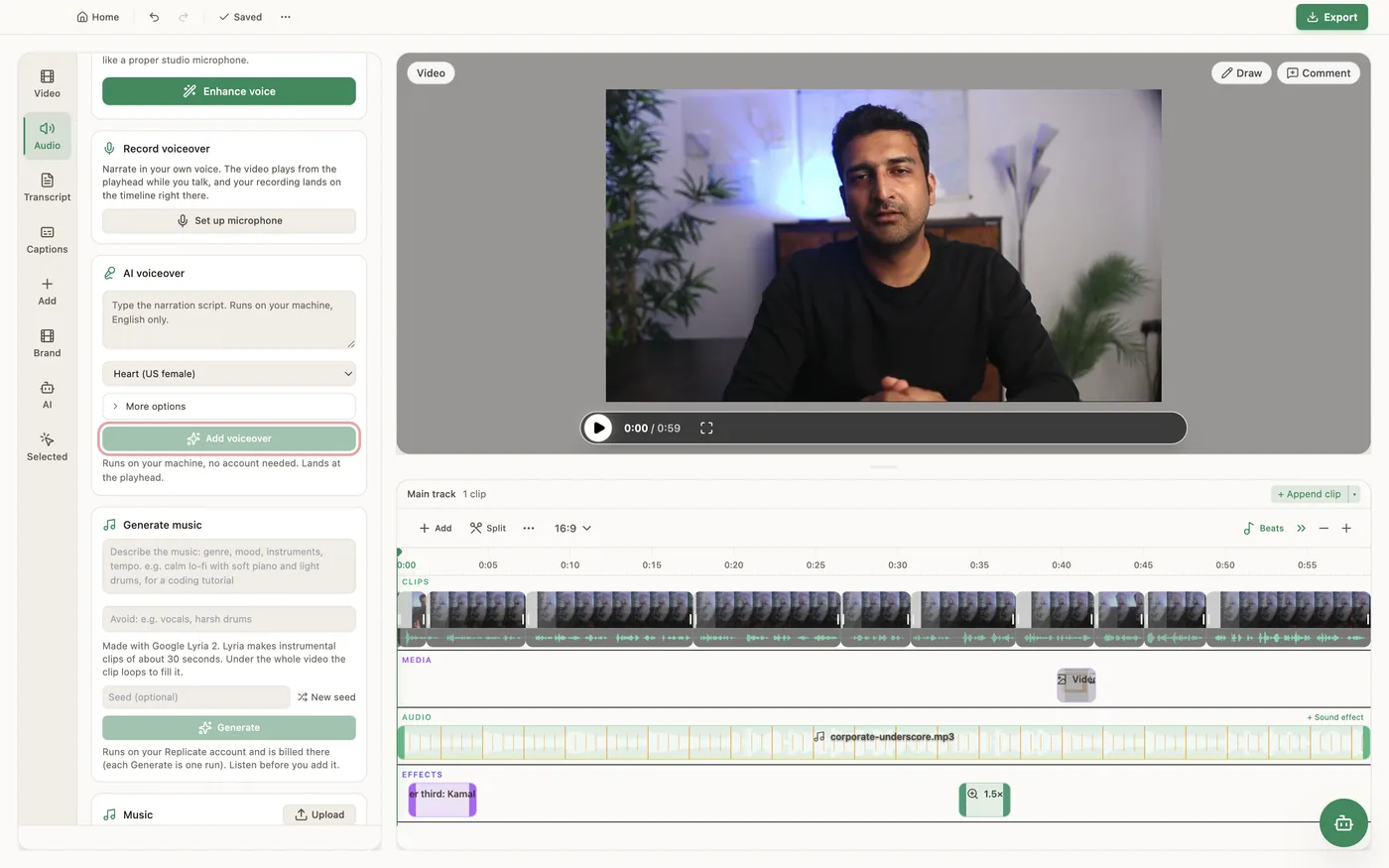
Open the Audio tab and use AI voiceover: type the narration script, pick a voice model and a voice, and click Add voiceover. The default model is Kokoro, on device (English): it runs on your computer, needs no account, and offers 16 US and UK voices (Heart is the default). The first use downloads a voice model of about 330 MB; after that it works offline. Kokoro speaks English only. For other languages or more voices you can pick a cloud model that runs on your own Replicate account (connect it in Settings > Connectors): ElevenLabs v3 (you can add delivery tags such as [excited] or [whispers] in the script), Gemini 3.1 Flash TTS or MiniMax 2.8 Turbo, the last two with an optional Tone. If you connect ElevenLabs itself, ElevenLabs, your account appears too, with your own and cloned voices. The voiceover lands on the timeline at the playhead as an audio track. Its script goes into the transcript and captions word for word, timed to the audio on your computer (if the transcription model is not downloaded, the words are spread by length until it is). Every narration remembers the script, model, voice and tone it was made from: select it on the timeline, change the words or the voice, and click Edit & regenerate. The new take replaces it where it is, keeping its start, volume, fades and ducking, and Undo brings the previous take back. In the selected audio panel you can switch off Include in the transcript and captions, for example for a sung line. To narrate in your own voice instead, use Record voiceover in the same tab. The AI can also speak in a voice taken from a 10 to 20 second sample of your own speech (cloud, Replicate), which is not in the panel yet.
In the app
- 1Move the playhead to where the narration should start, then open the Audio tab.
- 2Under AI voiceover, type the script in Narration script.
- 3Pick the Voice model (Kokoro, on device (English) by default, or a cloud model) and a Voice. Cloud models also take an optional Tone.
- 4Click Add voiceover. The narration lands at the playhead and its words appear in the transcript and captions.
- 5To change it, select the narration on the timeline, edit the script or voice under Narration script and click Edit & regenerate (or Regenerate for a new take of the same script).
Ask the AI
Open the AI chat in the editor and say any of these. The agent does the edits for you.
CLI & MCP
Every capability is a verb, reachable from the terminal or from an MCP agent (Claude Code, Cursor, Cline, Continue, Claude Desktop).
pandastudio media.generate-narration --text="Welcome to the channel." --voice=bf_emma
Writes an audio file and returns audioPath and durationMs; place it with project.add-audio. Omit --model for the workspace default (local Kokoro). Cloud: --model=elevenlabs-v3 | gemini-flash-tts | minimax-turbo (Replicate) or elevenlabs-direct (your ElevenLabs account). --pronunciations fixes names, e.g. '{"Kamal":"Ka mal"}'.
pandastudio media.regenerate-narration --id=$ID --regionId=audio-2 --text="The new script."
Replaces a narration on the timeline in place. Pass only what changes; the stored script, model and voice are reused. Its transcript words are re-timed to the new take.
pandastudio transcript.align-narration --id=$ID --regionId=audio-2 --include=false
New narrations are aligned automatically. Use this for older projects, to re-time one (--force=true) or to take one out of the transcript and captions (--include=false). Runs as a job.
pandastudio system.set-narration-engine --engine=local-kokoro
The workspace default: local-kokoro (on device, English) or replicate (cloud). A single narration can still pass its own --model.