Browse all docs
Import a video from a YouTube or TikTok link
Paste a video link into PandaStudio and it downloads the video (or just its audio) and opens it in the editor, for footage you own or have the rights to use.
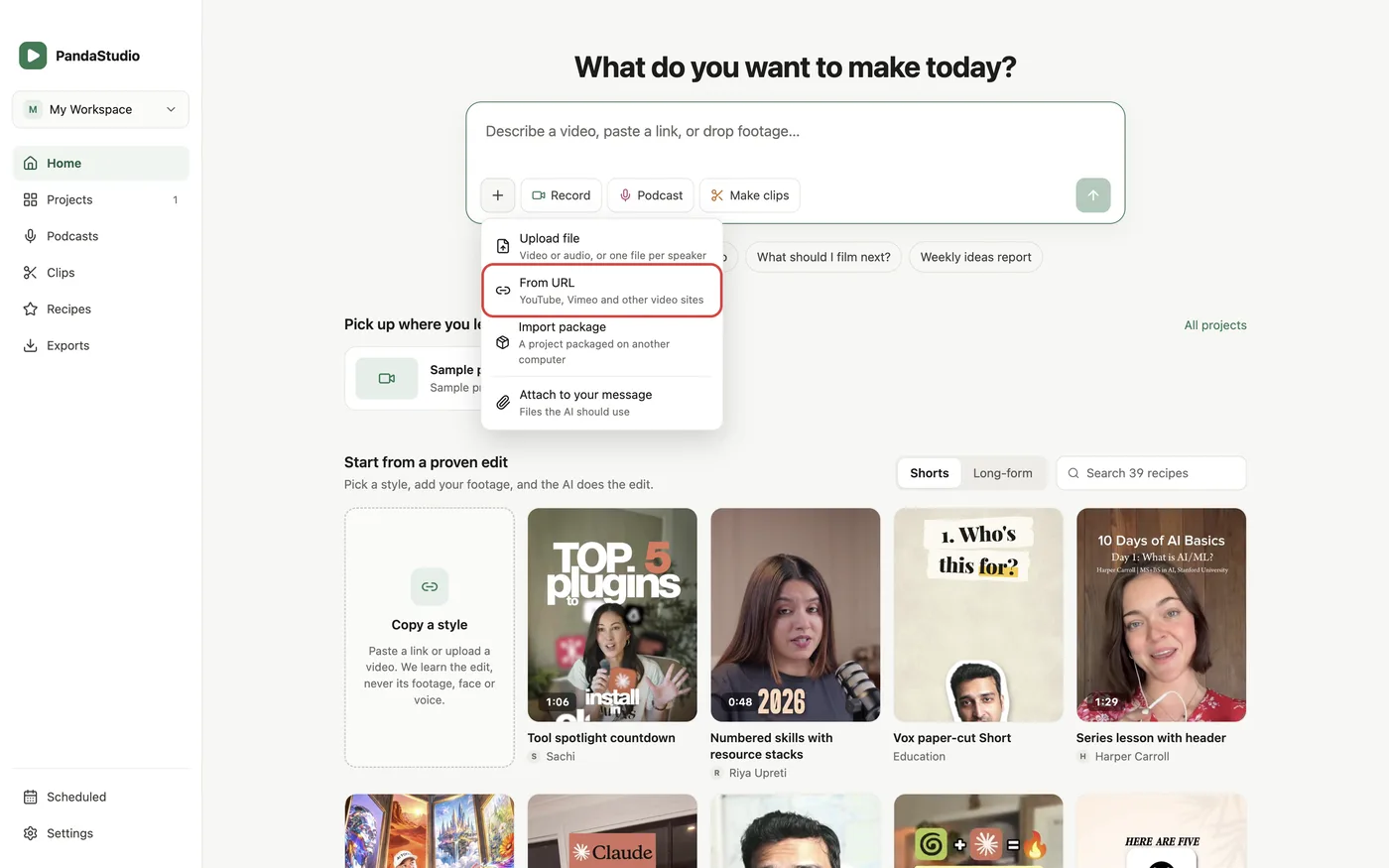
PandaStudio can bring in a video from a public web page on YouTube, Vimeo, archive.org, X, TikTok and the other sites its download engine supports. It is meant for your own uploads and for footage you have the right to use, such as Creative Commons or licensed clips, and the dialog says so. On Home, paste the link into What do you want to make today? and click Import and edit, or open + and choose From URL. In the Import from URL dialog, paste the link, tick Audio only if you only want the sound, and click Import: a progress bar shows the download, and the video opens in the editor when it finishes. Inside a project, the menu next to + Append clip has Import from URL... to add the video to the timeline as a new clip. Videos come in as MP4 (H.264 where available) up to 1080p, and audio as M4A. The download engine installs itself the first time you use it. Videos over two hours are refused unless the AI raises the limit (up to 10 hours), and the AI can also download only a part of a video. Links that are private, need a sign-in, are age-restricted, blocked in your country, a live stream or a playlist give an error that says which. To copy the editing style of a video rather than import it, use Copy its style instead.
In the app
- 1On Home, paste the video link into What do you want to make today? and click Import and edit. Or click + and choose From URL.
- 2Check the link in the Import from URL dialog. Tick Audio only if you only want the sound.
- 3Click Import (Import and edit from Home) and wait for the download to finish.
- 4The video opens in the editor, ready to transcribe and edit.
- 5To add a video to a project you already have, open the menu next to + Append clip on the timeline and choose Import from URL....
Ask the AI
Open the AI chat in the editor and say any of these. The agent does the edits for you.
CLI & MCP
Every capability is a verb, reachable from the terminal or from an MCP agent (Claude Code, Cursor, Cline, Continue, Claude Desktop).
pandastudio media.download-url --url='https://www.youtube.com/watch?v=VIDEO_ID' --addToProject=$ID
Runs as a job (job.wait). Only for videos you own or have the rights to use. --format=audio gets M4A; --startMs/--endMs download only that part; --as=overlay places it over the timeline (muted) and --as=audio as an audio track. Over 120 minutes needs --maxMinutes (up to 600).