Browse all docs
Flip or mirror a video
PandaStudio flips a clip with Flip horizontal (mirror left to right) and Flip vertical (top to bottom) under Video, Framing; use both to turn an upside-down recording the right way round.
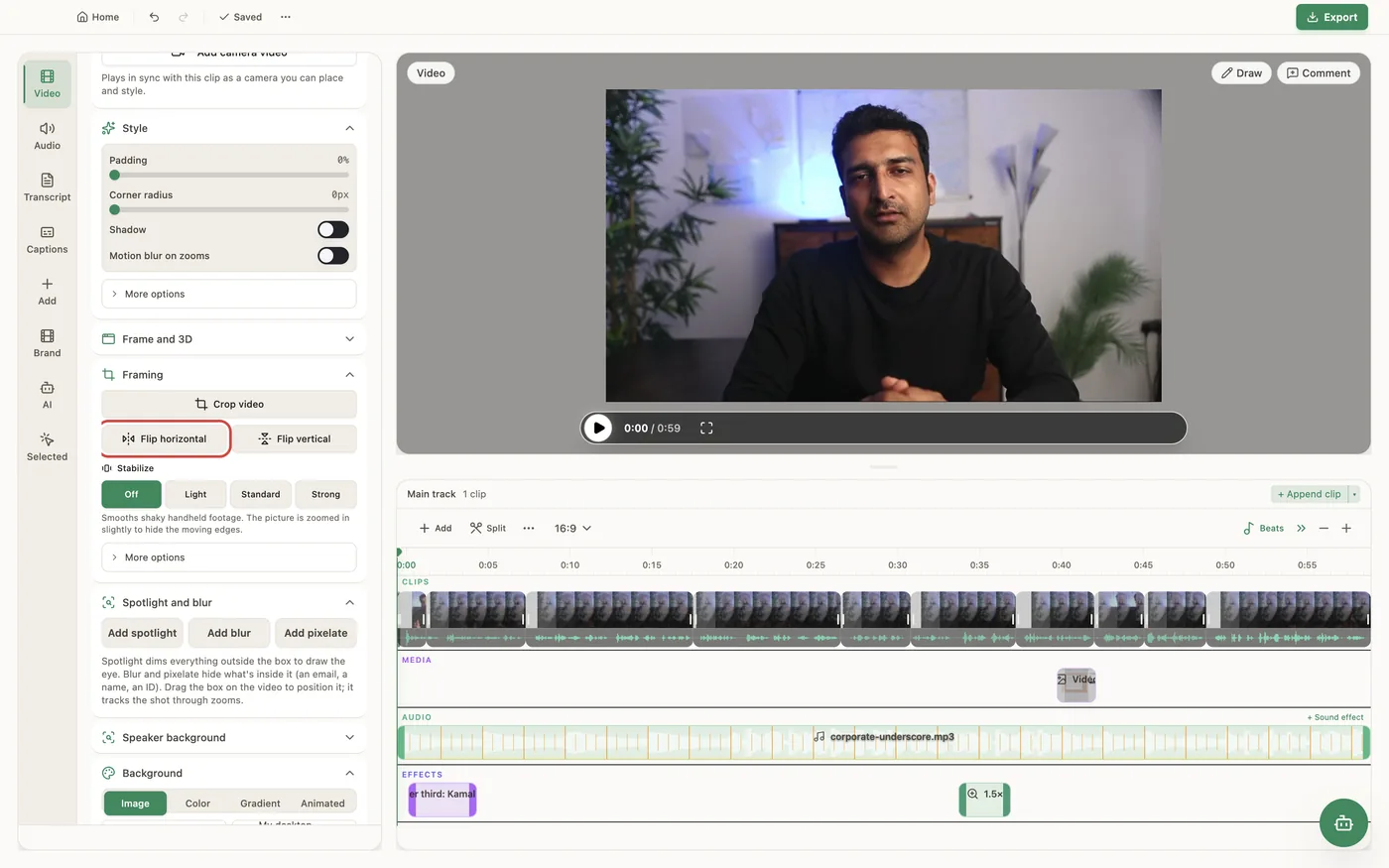
In PandaStudio 2.1.50 and later, the Framing section of the Video tab has Flip horizontal and Flip vertical buttons for the selected clip on the main track. Flip horizontal mirrors the picture left to right, Flip vertical flips it top to bottom, and both together turn it 180 degrees, the fix for a recording from a monitor mounted upside down. Click a button again to undo that flip. The flip corrects the source itself: crops, the recorded cursor, zoom focus and every other position follow the flipped picture, as if the file had been recorded the right way up. It applies to the whole clip, and each clip in a project keeps its own setting. The preview and the export draw it the same way. Audio-only clips have no picture to flip. The camera layer has its own Mirror camera switch under Camera appearance, so you can match the mirrored preview you saw while recording.
In the app
- 1Select the clip on the timeline and open the Video tab.
- 2Open Framing.
- 3Click Flip horizontal to mirror it, or Flip vertical to flip it top to bottom. For a recording that is upside down, click both.
- 4Click a highlighted button again to remove that flip.
Ask the AI
Open the AI chat in the editor and say any of these. The agent does the edits for you.
CLI & MCP
Every capability is a verb, reachable from the terminal or from an MCP agent (Claude Code, Cursor, Cline, Continue, Claude Desktop).
pandastudio project.set-clip-flip --id=$ID --clipId=clip-1 --horizontal=true --vertical=true
Main-track clips only. An axis you leave out keeps its value; --horizontal=false --vertical=false removes the flip. The camera's mirror is project.set-webcam-style mirror.