Browse all docs
Track a moving object in a video
PandaStudio's Track this area makes a blur, pixelate or spotlight box follow whatever is inside it, such as a moving window, a logo or a scrolling email address, forward and backward over the region's time range.
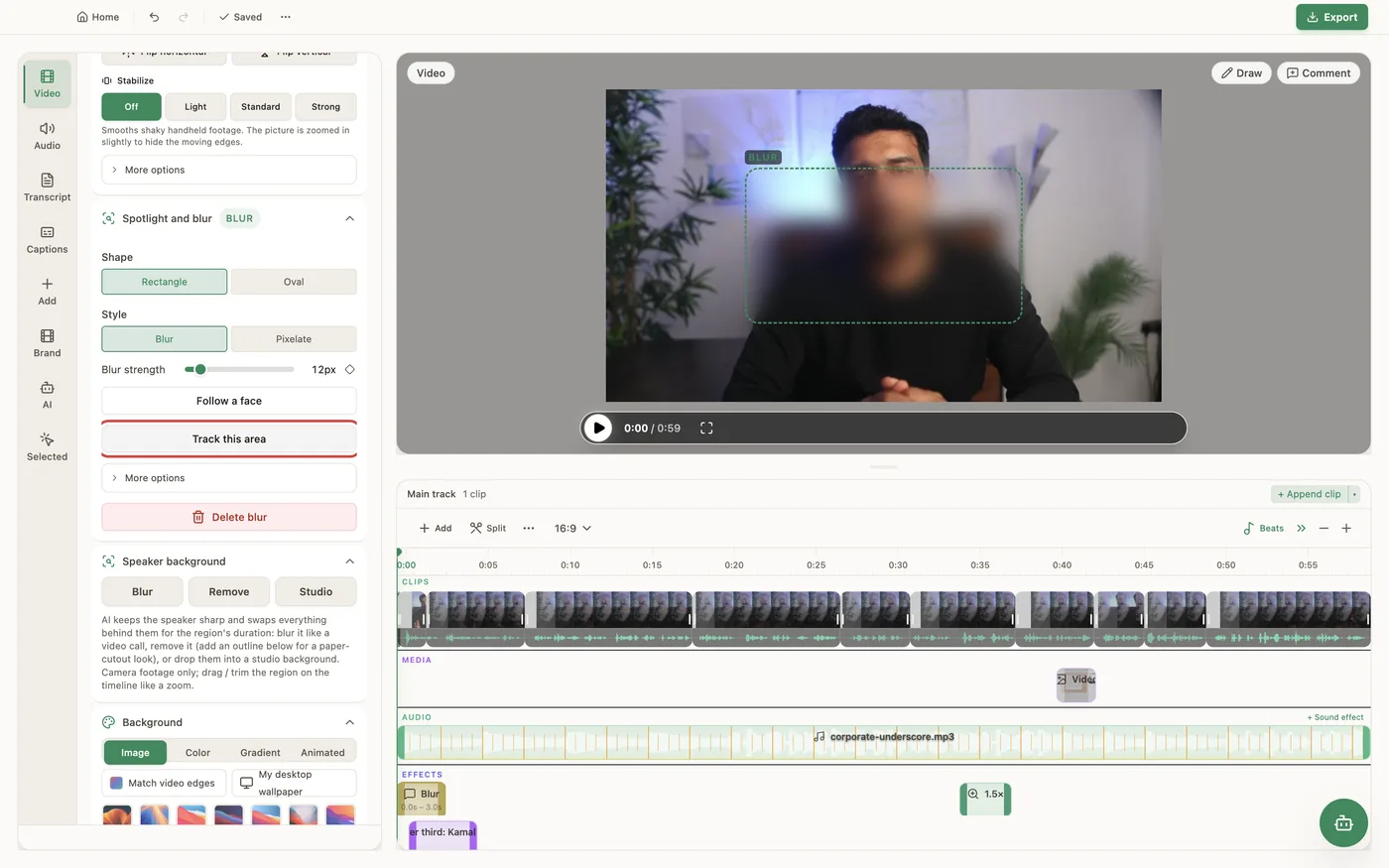
Tracking works on the focus regions in the Video tab's Spotlight and blur section. Add a spotlight, blur or pixelate region, move the playhead to a frame inside it and draw the box tightly around the thing to follow, then click Track this area. PandaStudio follows that content forward to the end of the region and backward to its start, about 15 times a second, and writes the movement as keyframes. Where it loses the content (it changes too much, leaves the frame or the shot cuts away), it tells you the time and the box holds its last position from there. Pick something with texture or edges: a flat area of one color cannot be followed. For a face, Follow a face uses face detection instead and is steadier. The tracked keyframes can be fine-tuned under Position and size, and Track this area again redoes it. Tracking runs on your computer, and the preview and the export use the same keyframes. It moves focus regions only: graphics, captions and zooms do not attach to a tracked object.
In the app
- 1Open the Video tab and, in Spotlight and blur, click Add blur, Add pixelate or Add spotlight.
- 2Move the playhead to a frame where the object is clearly visible, inside the region.
- 3Drag the box on the video tightly around the object.
- 4Click Track this area and wait for Tracking… to finish.
- 5If it reports that the area was lost, adjust the box at that time with the keyframe controls or click Track this area again.
Ask the AI
Open the AI chat in the editor and say any of these. The agent does the edits for you.
CLI & MCP
Every capability is a verb, reachable from the terminal or from an MCP agent (Claude Code, Cursor, Cline, Continue, Claude Desktop).
pandastudio project.track-region --id=$ID --regionId=spotlight-1 --atMs=12500
atMs is the frame the box marks (default the region start). Returns lostForwardAtMs and lostBackwardAtMs where tracking stopped. stepMs defaults to 66 (about 15 fps).
pandastudio project.add-spotlight --id=$ID --kind=blur --atMs=12000 --durationMs=6000 --x=0.4 --y=0.6 --width=0.2 --height=0.1
Create the region to track first.
pandastudio project.update-spotlight --id=$ID --regionId=spotlight-1 --keyframes=[]
An empty keyframes list clears the tracking.