Browse all docs
Clone your voice and make voiceovers in it, on your computer
PandaStudio clones your voice from about 20 seconds of you speaking and then makes voiceovers in it on your own computer, free, offline and in 44 languages, with nothing uploaded.
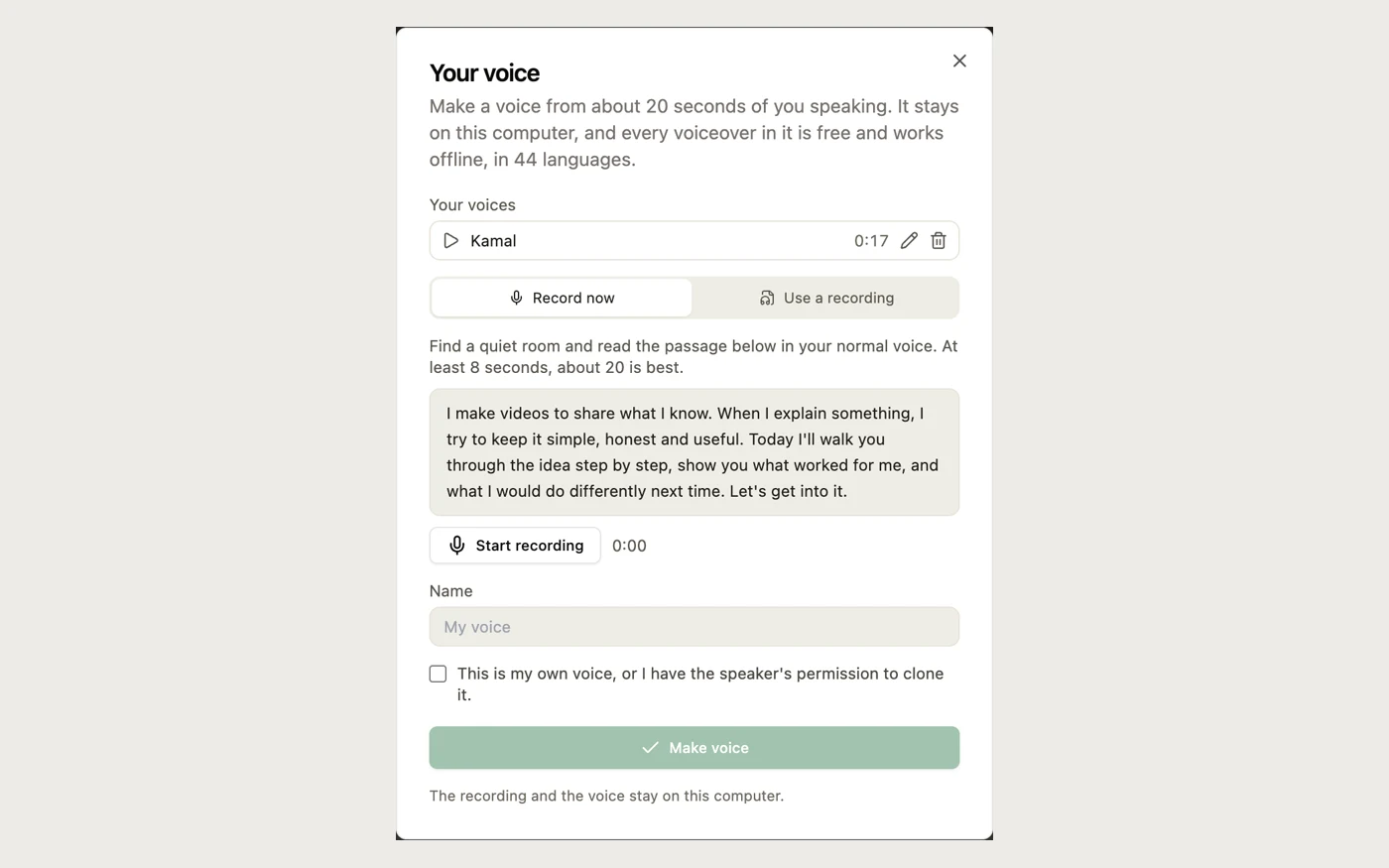
In PandaStudio 2.1.65 and later, Your voice makes a voice from a short recording of you and speaks any script in it. Open the Audio tab and, under AI voiceover, click Add your voice. Either record now (the panel shows a short passage to read; at least 8 seconds, about 20 is best) or use a recording: pick an audio or video file where only you are speaking, with no music, and the second to start from (up to 60 seconds are used). Give the voice a name and tick the box confirming it is your own voice, or that you have the speaker's permission. The first voice downloads the voice model once (about 1.2 GB) with progress shown; making the voice then takes a few seconds. Your voice appears first in the voice list, with a Language menu: it speaks 44 languages, including English, Spanish, French, German, Hindi, Tamil, Telugu, Japanese and Mandarin, so you can narrate in a language you do not speak in your own voice. A line takes about a second. Everything runs on your computer: the recording and the voice never leave it, there is no account, no per-line cost, and it works offline. The voiceover lands at the playhead like any AI voiceover, with its script in the transcript and captions, and can be edited and regenerated in place. Click Your voices to play the recording a voice was made from, rename it or delete it (voiceovers already made with it stay). You can also just ask the AI: in PandaStudio 2.1.66 and later, say "clone my voice" in Edit with AI, on Home or in a project, and it opens the same recorder for you; record, name the voice and tick the box there, and the AI picks up from the voice you saved. Kokoro stays the default stock voice. Tip: a quiet room and only your voice give the closest match. Your voice uses Zonos3-Mini by Zyphra (model Apache-2.0, code MIT).
In the app
- 1Open the Audio tab and, under AI voiceover, click Add your voice.
- 2Choose Record now and read the passage aloud (about 20 seconds), or Use a recording, choose a file where only you are speaking and set Start at.
- 3Enter a Name, tick This is my own voice, or I have the speaker's permission to clone it, and click Make voice. The first time, the voice model downloads once (about 1.2 GB).
- 4Your voice is selected in the Voice list. Pick a Language if the script is not in English, type the script and click Add voiceover.
- 5Click Your voices to play, rename or delete a voice.
Ask the AI
Open the AI chat in the editor and say any of these. The agent does the edits for you.
CLI & MCP
Every capability is a verb, reachable from the terminal or from an MCP agent (Claude Code, Cursor, Cline, Continue, Claude Desktop).
pandastudio voice.record --name="Kamal"
PandaStudio 2.1.66 and later. Opens the Your voice recorder in the window you are using, Home or a project, on the Record tab. You record (at least 8 seconds, about 20 is best), name the voice and tick the consent box; the job (job.wait) returns the voice you made, or that you closed the recorder.
pandastudio voice.create --name="Kamal" --sample=/path/to/me-talking.mp4 --sampleDurationMs=20000
Runs as a job (job.wait). Uses 8 to 60 seconds from --sampleStartMs where only that person speaks. The first voice downloads the model once. PandaStudio asks you on a card to confirm the voice is yours or that you have permission.
pandastudio media.generate-narration --model=zonos3-local --voice=Kamal --language=ta --text="..."
Speaks in one of your voices on your computer; place the file with project.add-audio. --language takes 44 languages, --speed 0.6 to 1.6.
pandastudio voice.list
Your voices, whether the model is downloaded, and the languages. voice.rename and voice.delete manage them; voice.download-model fetches the model ahead of time.