Browse all docs
Make a whiteboard or faceless video narrated in your own voice
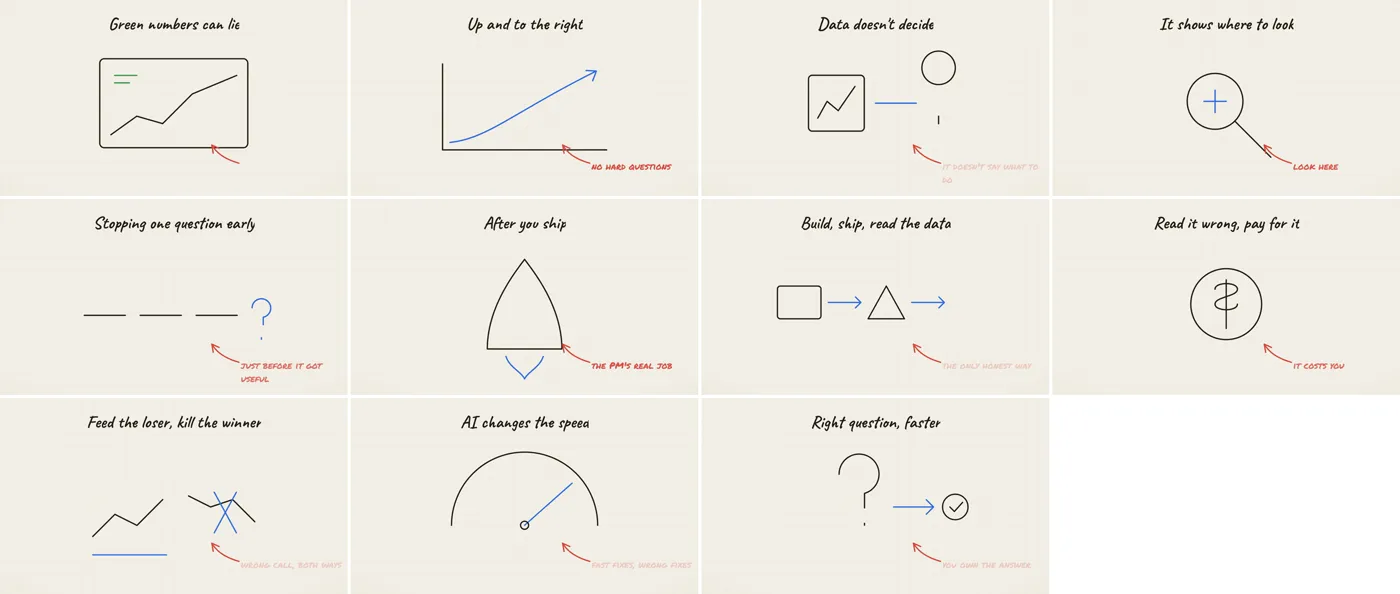
Prefer your own voice to an AI voice? Record the narration or choose an audio file, and PandaStudio transcribes it, splits it into beats and draws or generates a scene for each one, timed to your words.
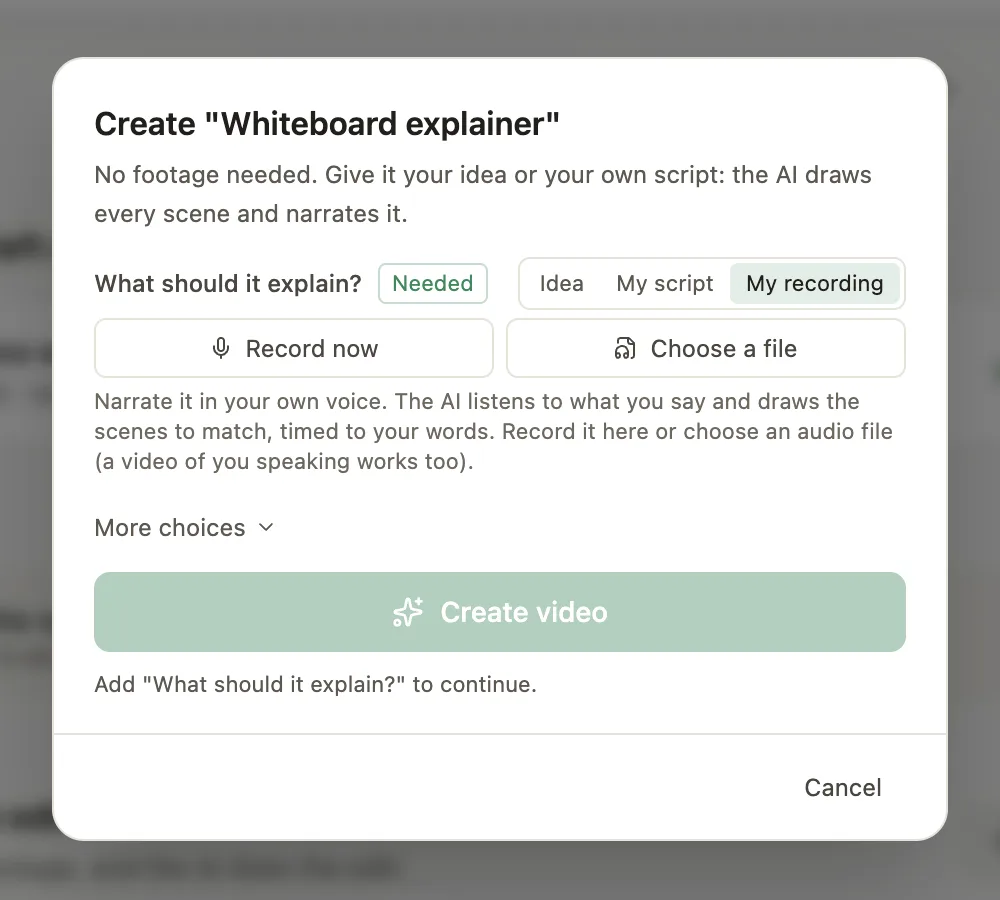
In PandaStudio 2.1.70 and later, the recipes that are narrated (Whiteboard explainer, Faceless Short and Faceless YouTube explainer) can use your own voice instead of an AI voice. Where the recipe asks what the video is about, choose My recording next to Idea and My script. Click Record now to record it there (pick a microphone, then Start recording; you can pause and resume, listen back, and record again), or click Choose a file to use a recording you already have: an audio file (MP3, WAV, M4A and more) or a video of you speaking, whose sound is used. Then create the video as usual. PandaStudio puts your recording on the timeline as the narration, transcribes it on your computer with your transcription settings, and splits what you say into beats at sentence ends and pauses, one scene each. The AI draws (or generates) a scene for each beat and lines it up with your words to the frame, so every scene changes just as you start the sentence it shows. Your recording sets the length, and it is never cut, sped up or re-voiced; the narrator voice and length choices are not needed then. Music is lowered under your voice and sound effects land on the scene changes, exactly as with an AI narration, and captions use the transcript (fix a misheard name in the transcript first). Tips: speak as you would to a friend and pause briefly between ideas, since each pause is a place for a new scene; a quiet room gives the cleanest transcript. If you would rather not record every video, Your voice (PandaStudio 2.1.65 and later) clones your voice from about 20 seconds of speech, on your computer, and the AI then narrates its own script in your voice.
In the app
- 1On Home, pick the Whiteboard explainer (or a Faceless recipe) under Start from a proven edit.
- 2Next to What should it explain?, choose My recording.
- 3Click Record now, pick your microphone and click Start recording. Pause if you need to, then click Done. Or click Choose a file and pick your recording.
- 4Listen back in the player. Record again or Choose another if you want a different take.
- 5Click Create video. The AI builds every scene around your recording.
Ask the AI
Open the AI chat in the editor and say any of these. The agent does the edits for you.
CLI & MCP
Every capability is a verb, reachable from the terminal or from an MCP agent (Claude Code, Cursor, Cline, Continue, Claude Desktop).
pandastudio project.add-voiceover --id=$PID --audioPath="/path/to/my-narration.m4a"
PandaStudio 2.1.70 and later. Adds your recording as the narration track, transcribes it and returns its beats (job.wait): index, text, startMs, endMs, durationMs, speechStartMs, speechEndMs. Render each scene at 30 fps (or pass --frameRate) for exactly its beat's durationMs and add the scenes in order; they then start on the words. Running it again on the same file reuses the track.
pandastudio transcript.narration-beats --id=$PID --maxBeatMs=6000
PandaStudio 2.1.70 and later. The beats of a narration already on the timeline (your recording, a recorded voiceover or an AI narration). --maxBeatMs splits long beats for faster cuts in a Short.
pandastudio recipe.render --id=whiteboard-explainer --values='{"concept":"/path/to/my-narration.m4a","conceptKind":"recording"}'A narrated recipe run on your own recording: the idea blank takes the file's path with Kind recording, and the run uses project.add-voiceover instead of an AI voice.